







How to Use Social Post Studio in Promeo
Pick a short animated template for a social post, change the words, and export it as a video.
Updated Sep. 13, 2026 · 4 min read
In a hurry? Use the Social Post Studio quick guide instead.
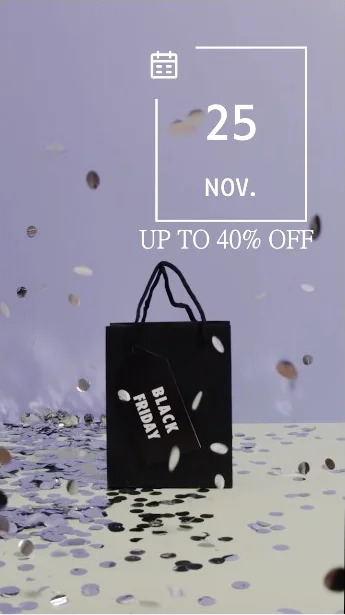
Promeo's Social Post Studio is a gallery of short animated templates for social posts, each already cut to music. We took a 12-second Black Friday clip, changed the date and the discount in two text layers, and exported it as a vertical Full HD video. The confetti, the motion and the soundtrack came with the template.

- On the Promeo Home page, click Social Post Studio in the row of tools at the top.
- Under Choose a template, click a category such as Social Media.
- Click a template to open it in the editor.
- Click each piece of text and type your own.
- Click Export & Share, choose Video and a quality, then Export.
Steps to Use Social Post Studio
Step 1: Open Social Post Studio
On the Promeo Home page, Social Post Studio sits in the row of tools across the top, between AI Profile Creator and Marketplace Template.

Step 2: Choose a Category
The page opens with Start with blank canvas, empty canvases already sized for the main social platforms' posts, reels, videos and thumbnails, and under it Choose a template. Every template here is a video, and the badge in its corner gives its length.
The categories run from Seasonal and Social Media to Sale, Food, Gaming and more. We clicked Social Media.

Step 3: Pick a Template
Scroll the gallery and click the one you want. We chose a lilac Black Friday template: a black shopping bag, falling confetti, a date in a frame and a discount line, 12 seconds long. Hovering shows two small icons in the corner; clicking the template opens it.

Step 4: Change the Text
The template opens in the editor with the clip and a Background music track on the timeline, and Layers on the right. Click a piece of text on the canvas and type over it; a small toolbar appears above it, and the style controls run across the top.
We changed 25 Nov. to 1 Dec. and Up to 40% off to Up to 70% off. The new words kept the template's font, color and animation.

Step 5: Export It as a Video
Click Export & Share at the top left. The panel offers Image, Video and Share, and marks Video as suggested for a template like this. Choose where to save it under Export to, pick a quality from Ultra HD (4K) down to SD 480p, and click Export. We used Full HD 1080p.
Check Export to before you click. Ours was already pointing at a folder on the desktop, which is easy to lose track of; the folder icon beside the path picks somewhere else.

The Result
The export at the top of this page is a 1080 by 1920 vertical clip, 12 seconds long: the frame and date draw in, the confetti falls around the bag, and the discount line settles underneath. Two words changed, and it reads as our sale rather than a sample.
Haven't got Promeo yet? Pick an animated template for your next sale or announcement, change the words, and post a finished video with music already in it.
Download Promeo Free →FAQ About Social Post Studio
The page works the same way, but these templates are videos with motion and music. For still designs, see how to use Marketplace Template.
Yes. Export & Share has an Image tab beside Video. Video is marked as suggested for animated templates.
Full HD 1080p suits most social posts, and it is what we used. Ultra HD (4K) gives the largest file; HD 720p and SD 480p are smaller and quicker to upload.
The template's soundtrack sits on its own Background music track under the clip on the timeline, and Music is in the editor's left menu.


